Your Salesforce lead data is at risk from accidental deletions, system errors, or even malicious breaches. Without proper backups, you could lose critical sales pipeline insights, disrupt forecasts, or damage marketing efforts. Salesforce doesn’t provide full recovery solutions out of the box, and their manual recovery service is expensive and unreliable. The best way to protect your lead data is by implementing a tailored backup strategy. Here’s what works:
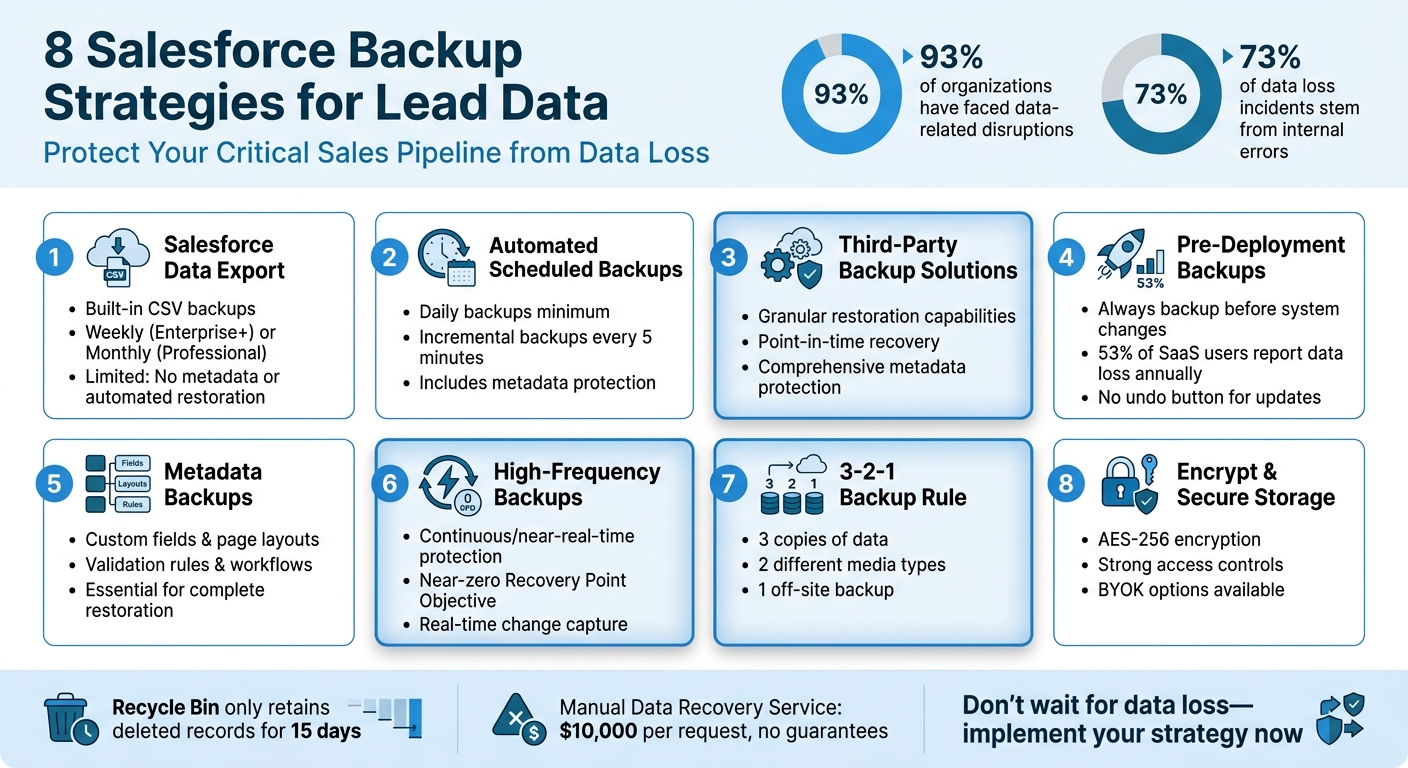
- 1. Salesforce Data Export: Use Salesforce’s built-in Data Export Service for basic weekly or monthly CSV backups. However, it lacks metadata and automated restoration capabilities.
- 2. Automated Scheduled Backups: Automate daily or high-frequency backups using external tools to reduce data loss risks and ensure metadata is included.
- 3. Third-Party Backup Solutions: Invest in tools that allow granular restoration, point-in-time recovery, and comprehensive metadata protection.
- 4. Pre-Deployment Backups: Always back up your data before system changes to safeguard against potential errors during updates.
- 5. Metadata Backups: Include custom fields, page layouts, and automation settings in your backups to preserve system functionality.
- 6. High-Frequency Backups: Use continuous or near-real-time backups to minimize recovery windows and protect against frequent updates or errors.
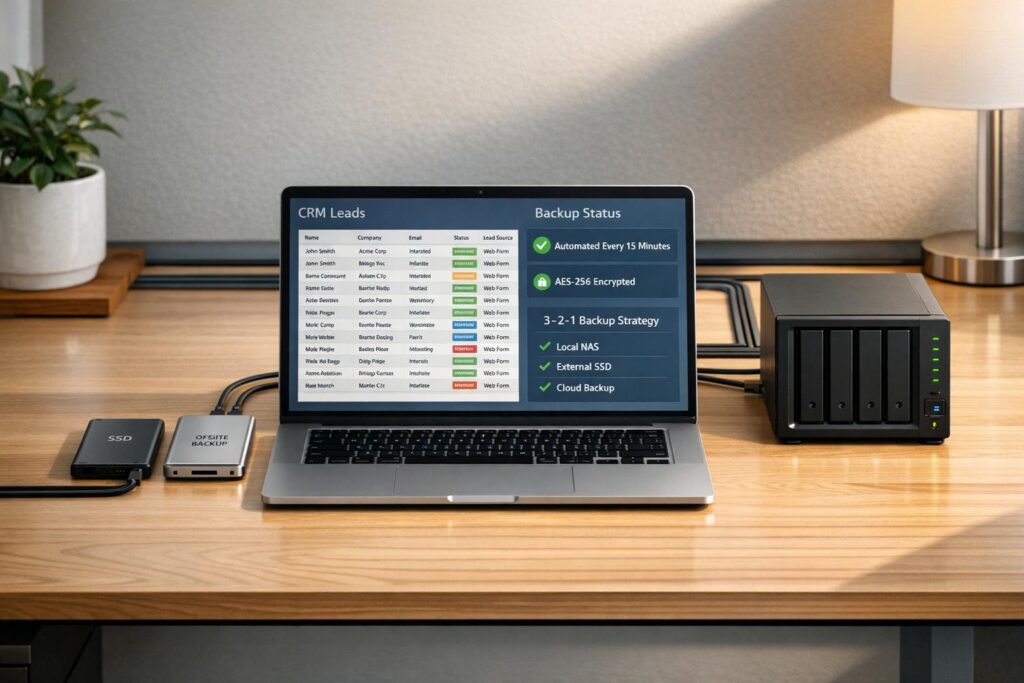
- 7. 3-2-1 Rule: Maintain three copies of your data, store them on two media types, and keep one off-site for added security.
- 8. Encrypt and Secure Storage: Apply AES-256 encryption and strong access controls to protect backups from breaches.
Key Takeaway: A well-rounded backup strategy should address both data and metadata, include automation, and prioritize security. Don’t wait for a data loss incident – start protecting your Salesforce lead data now.
8 Salesforce Backup Strategies for Lead Data Protection
How to perfect your Salesforce data backup and recovery strategy
sbb-itb-0ae5139
1. Use Salesforce Data Export for Lead Backups
Salesforce’s Data Export Service is a built-in feature that allows you to create CSV backups of your lead data. It’s included with your Salesforce subscription and can be accessed through the Setup menu using a simple wizard interface [7][9]. The service supports exporting all standard objects, including Leads, and gives you the option to back up either all data or just specific objects [6][8].
Backup Frequency and Automation Options
The frequency of backups depends on your Salesforce edition. If you’re using Enterprise, Performance, or Unlimited Editions, you can schedule weekly exports (every 7 days). For Professional and Developer Editions, backups are limited to monthly exports (every 29 days) [6][10]. This means your data’s Recovery Point Objective ranges from 7 to 29 days [10].
To automate backups, use the Schedule Export feature for weekly or monthly exports, depending on your edition. Alternatively, you can use the Data Loader with a command-line interface (CLI) for more tailored and frequent backups [6][9]. Once your data export is ready, Salesforce sends an email notification with a download link. Keep in mind that these ZIP files are automatically deleted 48 hours after the email is sent, so it’s important to download them promptly [6][10].
Before relying solely on this service, it’s important to understand its limitations for restoring data.
Data Recovery Capabilities
While the Data Export Service is a reliable way to archive your lead data, it’s not designed for automated restoration. As Gearset explains:
"The Data Export Service is archive-grade, not restore-ready. It produces raw data, but without the essential components that make Salesforce function" [10].
This means restoring data involves manual work. For example, re-establishing lead relationships requires using CSV files and tools like VLOOKUP. Restoring 500 records manually can take over 8 hours, whereas specialized tools can handle the same task in about 20 minutes [10].
Additionally, the service only backs up record data – such as lead names and email addresses. It doesn’t include metadata like custom fields, validation rules, page layouts, or automation settings [7][9][10]. Without this metadata, restored data won’t work properly in Salesforce. For large organizations, generating export files can take 24 to 48 hours, and the data may be split into multiple ZIP files, each up to 512 MB in size [8][10].
Security Measures (Encryption, Access Control)
Access to the Data Export Service is restricted to users with System Administrator or Super Admin profiles, as standard users typically don’t have the required permissions [8]. Once the export is ready, Salesforce provides it as a secure ZIP file accessible through an emailed link. However, securing the downloaded files is the responsibility of your organization. This includes implementing encryption and access controls for the stored CSV files [8]. Given the 48-hour deletion policy, it’s crucial to download backup files as soon as you receive the notification email [6].
2. Set Up Automated Scheduled Backups
Relying on basic exports isn’t enough for teams that need consistent and reliable backups. While Salesforce’s Data Export Service provides basic scheduling, automated backup solutions offer the frequency and reliability necessary to avoid data loss. These tools are crucial for maintaining business continuity.
Backup Frequency and Automation Options
Your backup schedule should align with your Recovery Point Objective (RPO). For most enterprise setups, daily backups are a must to ensure data remains intact [13][2]. As Flosum advises:
"Ideally, these organizations should choose a solution that offers high-frequency backups, preferably daily" [2].
For teams dealing with frequent data updates, consider solutions offering continuous data protection or incremental backups – some as frequent as every five minutes [14][16]. These incremental backups capture only the latest changes, reducing system strain while keeping your RPO near zero [1]. To minimize performance impact, schedule automated backups during off-peak hours, though incremental backups make this less of a concern [11][12].
Compatibility with Salesforce Lead Data
An effective automated backup solution must fully capture all Salesforce data, including data and metadata. Greg Belkin, Senior Director of Product Marketing at Flosum, highlights this critical point:
"Salesforce data can’t be restored without first restoring metadata. Failure to backup metadata will only provide you with a partial backup" [18].
For better recovery efficiency, separate your record data backups from file attachments [11]. Additionally, ensure your backup system can restore related objects, like Account Contact Roles, to preserve the structure of your sales funnel [12].
Security Measures (Encryption, Access Control)
To ensure secure and uninterrupted backups, use a dedicated service account with "API Only" and "Modify All Data" permissions [11]. This approach keeps the service running smoothly, even if team members leave. While multi-factor authentication (MFA) is mandatory for most users, exclude your backup service account to avoid authentication issues during automated processes [11]. Finally, allowlist your backup provider’s IP ranges in Salesforce to prevent connectivity problems [11].
3. Deploy Third-Party Backup Solutions
While Salesforce’s native backups provide a basic safety net, third-party backup solutions take data protection to the next level. They deliver more precise recovery options and address the gaps in native tools, particularly when it comes to granular restoration and safeguarding metadata.
Data Recovery Capabilities
Third-party tools shine when it comes to restoring specific data. Whether you need to recover a single lead record, an individual field, or a file, these solutions let you do so without undoing changes across your entire organization. They also offer point-in-time recovery, allowing you to restore data to an exact moment in time [13][2].
Ben McCarthy, Founder of Salesforce Ben, highlights a key concern:
"A backup solution is useful in case Salesforce loses your data, this is not the primary reason you need it. The most likely cause of losing data will come from user error" [5].
Salesforce’s native Recycle Bin only retains deleted records for 15 days, which can be limiting. Third-party solutions overcome this with customizable retention periods and automated recovery processes, ensuring your data is always accessible when you need it.
Compatibility with Salesforce Lead Data
Professional backup tools go beyond just saving lead records – they also safeguard the metadata that defines your Salesforce setup. This includes custom fields, page layouts, validation rules, and workflows, ensuring your data and its configuration are fully preserved [19]. This level of backup ensures that restoration doesn’t just bring back data but also maintains its original structure and functionality.
Many of these tools also feature version comparison capabilities, which help identify exactly when data or metadata was altered or corrupted. Additionally, sandbox seeding options allow you to test lead-related automations safely using masked backup data [13].
Security Measures (Encryption, Access Control)
Top-tier backup solutions prioritize security with AES-256 encryption, protecting your data both at rest and in transit [4]. For organizations with stricter security requirements, some providers offer Bring Your Own Key (BYOK) options, giving you full control over encryption keys. Certain platforms even implement "no-view" models, ensuring that not even the service provider can access your data.
To further guard against threats like ransomware, many solutions include air-gapped or immutable backups, which isolate your data from potential attacks. With 73% of data loss incidents stemming from internal errors or malicious activity [4], features like comprehensive audit trails are invaluable for tracking backup, restore, and login activities. These logs are particularly useful for security investigations and compliance purposes [4].
4. Back Up Lead Data Before Deployments
Deployments can be a tricky time for your Salesforce data. Whether you’re introducing new Flows, updating Apex code, or tweaking validation rules, every change comes with the risk of accidentally overwriting or deleting lead records. And here’s the kicker: Salesforce doesn’t have an undo button for update operations. That means once data is altered, it’s gone – unless you’ve backed it up beforehand [3]. Pre-deployment backups are a critical layer of protection in any data management plan.
Ben McCarthy, Founder of Salesforce Ben, doesn’t mince words:
"Deployments inherently risk data and metadata loss. The more deployments you are carrying out, the higher the risk" [5].
The stats reinforce this point: 53% of SaaS users reported data loss or corruption in the past year [3]. If something goes wrong during deployment, your pre-deployment backup becomes the lifeline.
Backup Frequency and Automation Options
To minimize risk, combine regular backups with deployment-specific backups. The golden rule? Always perform a manual backup right before deploying changes. This ensures you have a clear snapshot of your lead data before any updates take effect [3].
For frequent deployments, automation is your best friend. Tools like Gearset, Flosum, and AutoRABIT can automate backups as part of your deployment workflow [5]. This hands-off approach is especially helpful if you’re rolling out updates multiple times a month.
Data Recovery Capabilities
Point-in-time recovery is a lifesaver when it comes to restoring specific lead records. Unlike the Recycle Bin – which only stores deleted records for 15 days and has strict storage limits – this method allows you to recover just the affected data [3]. Keep in mind, if a deployment uses the "Hard Delete" option, those records skip the Recycle Bin entirely [3].
Granular restoration takes it a step further, letting you recover specific fields or records without disrupting the rest of your system [15][1].
Compatibility with Salesforce Lead Data
Don’t overlook metadata in your backups. Without it, you can’t restore custom fields or layouts [2]. As Flosum puts it:
"Salesforce data can’t be restored without first restoring metadata. Failure to backup metadata will only provide you with a partial backup since data cannot be restored to fields that do not exist" [2].
Before restoring data, temporarily disable automations like Workflows, Flows, and Validation Rules to prevent them from unintentionally altering lead records during recovery [2]. By aligning deployment backups with your overall backup strategy – covering frequency, recovery options, and metadata – you’ll have a solid plan to protect your lead data from unexpected issues.
5. Include Lead Metadata in Backups
Backing up your lead data is a great start, but it’s only part of the equation. To ensure a complete recovery, you also need to back up your metadata. Why? Because metadata provides the structure and context for your lead data – it includes things like custom fields, page layouts, validation rules, and automation settings. Without it, restoring your data won’t bring your system back to its original state. Metadata is what ties everything together, making it essential for a full restoration process[19].
Consider this: 93% of organizations have faced data-related interruptions, and 60% of those have permanently lost data[2]. These stats highlight why metadata backups are critical for protecting your lead data.
Compatibility with Salesforce Lead Data
When dealing with Salesforce lead data, certain metadata elements deserve extra attention. These include:
- Flows: Particularly for lead assignment and routing.
- Validation Rules: To maintain data accuracy.
- Custom Fields and Page Layouts: For organizing and displaying lead information.
- Permission Sets and Sharing Rules: To manage access and collaboration.
Don’t forget about Custom Metadata Types and Automation Settings. These components control execution order and help avoid workflow disruptions during restoration[19][20].
Data Recovery Capabilities
Recovering metadata involves identifying and fixing broken components, often by selectively deploying them from a backup or sandbox environment[20]. Advanced tools let you restore specific elements – like a single validation rule or a custom field – without affecting the rest of your system[19][15].
As Perez Victor, a Salesforce Administrator at Xappex, puts it:
"A metadata backup is a reference point. It helps you see what existed before a change or an issue occurred."[20]
Having a clear recovery process in place ensures you can act quickly when needed.
Security Measures (Encryption, Access Control)
Metadata backups need the same level of protection as your data backups. Follow the 3-2-1 rule: keep three copies of your backups, store them on two different media types, and make sure one copy is off-site[19][15][2]. Use full encryption and multi-factor authentication to secure these backups.
Also, remember that access control settings, such as Permission Sets and Profiles, are part of your metadata. Without these, you won’t be able to fully restore your system’s security configuration[19]. Keeping metadata backups safe ensures you’re prepared, even during major disruptions like Salesforce outages[19][2].
6. Implement Continuous High-Frequency Backups
Relying on weekly backups can leave you vulnerable to losing days’ worth of data. Continuous high-frequency backups, on the other hand, capture every change as it happens, bringing your recovery window down to almost zero. Salesforce’s native Data Export Service only supports weekly exports, but continuous data protection works in real time, offering near-zero Recovery Point Objectives (RPO)[1].
Backup Frequency and Automation Options
Continuous protection significantly reduces the risk of data loss compared to scheduled backups. Automated systems capture changes in real time – whether hourly, daily, or continuously[1][12]. This is especially crucial because 73% of Salesforce data loss incidents result from internal issues like accidental deletions or user errors[4]. High-frequency automation ensures you can restore your data to its precise state before an incident, even if the issue is discovered days later[2].
"Continuous data protection captures every change made to your data in real-time, so you can restore your system to virtually any point in time." – Salesforce[1]
Another advantage of automated backups is their ability to preserve complex relationships between lead records, accounts, and custom objects. Manual CSV exports often fail to maintain these connections. For organizations managing millions of records, advanced tools optimize data extraction while staying within Salesforce API limits[4].
Data Recovery Capabilities
High-frequency backups offer point-in-time recovery with unmatched precision. For example, if 5,000 lead records are mistakenly overwritten at 2:47 PM on a Thursday, you can roll back to 2:46 PM[13]. This level of accuracy is essential, especially since 83% of Salesforce users rely on dedicated backup tools to meet their recovery needs[2].
Unlike manual recovery services – which can be costly and time-consuming – high-frequency solutions deliver fast, detailed restores. These tools allow you to recover specific fields or records in minutes. They also temporarily disable Workflows, Flows, and Validation Rules during restoration to avoid conflicts[2].
Security Measures (Encryption, Access Control)
Continuous backups demand strong security measures, including end-to-end encryption for data in transit and at rest[1]. Advanced solutions employ Zero Trust Architecture with AES-256 encryption and customer-managed keys (BYOK), ensuring even the backup provider cannot access your data[2][4]. Immutable snapshots further protect against ransomware by preventing any changes to historical backups. Additionally, air-gapped storage on separate cloud infrastructure safeguards your data from platform-wide outages[1][4].
Access control is equally critical. With 30% of security leaders identifying data breaches as a major concern[1], granular permissions and detailed audit trails are essential. These logs track every backup operation, restoration attempt, and user login[4]. Proactive monitoring also plays a key role: smart alerts can notify you when more than 10% of your lead data is altered or deleted in a single operation, adding another layer of protection[12].
7. Follow the 3-2-1 Backup Rule
To protect your Salesforce lead data, stick to the 3-2-1 backup rule: maintain three copies of your data, store them across two different types of media, and keep one copy off-site [21]. In practice, your live Salesforce production environment is the first copy, a primary backup (like a local export or sandbox) is the second, and the third resides off-platform – on services like AWS, Azure, or a third-party vault.
Why is this so important? Because data loss is more common than you might think – about 70% of organizations face data loss each year [21], and 93% have experienced business interruptions due to data issues [18]. Relying solely on Salesforce creates a single point of failure, which is why off-platform storage is a must for 3-2-1 compliance [21].
Compatibility with Salesforce Lead Data
Here’s the catch: Salesforce lead data isn’t just about the records – it also requires metadata. Metadata includes the custom fields, lead assignment rules, and page layouts that give structure to your data [21]. Without it, restoring lead records is impossible.
"Metadata is critical as it provides the structure for your org… If you lose the metadata that houses your data, you’re unable to restore anything at all." – Gearset [21]
While Salesforce’s native tools, like the Data Export Service, can back up data, they often skip metadata. Third-party solutions offer a better alternative by automating the 3-2-1 rule. These tools handle off-site storage and ensure metadata is backed up alongside lead data. Plus, they’re designed to manage large-scale data extractions – perfect for organizations with over 10 million records – while staying within Salesforce’s API limits [4]. This makes them an essential part of a comprehensive backup strategy.
Security Measures (Encryption, Access Control)
Backing up your data is only half the battle. To keep it safe, off-site copies need strong security measures. Use AES-256 encryption and apply the same access controls to backups as you do to your live Salesforce data [21]. For added protection, store at least one backup in immutable (WORM) storage, which prevents ransomware attacks from altering or deleting it [22].
With 30% of security leaders citing data breaches as a major concern [1], it’s critical to enforce strict access controls. Implement granular permissions and consider Bring Your Own Key (BYOK) encryption to ensure only authorized users can access or restore sensitive lead data [2]. And don’t forget: backups stored in geographically separate regions add an extra layer of security against localized threats [22].
8. Encrypt and Secure Backup Storage
Encryption acts as the ultimate safeguard for your Salesforce lead data. Without it, backups remain exposed to potential risks. The industry standard for securing data is AES-256 encryption, which should protect your data in two critical states:
- At rest: When stored on backup media or cloud storage.
- In transit: While transferring between Salesforce and your backup destination, typically secured using TLS 1.2 or higher.
"Encryption is critical for securing your backup data from unauthorized access. By encrypting backups, both in transit and at rest, you add an extra layer of protection against cyber threats and data breaches." – Salesforce [1]
To make encryption truly effective, pairing it with strong key management practices is essential. This includes regular key rotation and implementing centralized controls. For environments requiring heightened security, Bring Your Own Key (BYOK) functionality allows you to manage the entire lifecycle of your encryption keys, giving you complete control [2][23][24].
Security Measures (Encryption and Access Control)
Encryption alone isn’t enough – you also need robust access control to prevent unauthorized decryption. Combining encryption with Role-Based Access Control (RBAC) and Multi-Factor Authentication (MFA) ensures that only authorized users can access and manage your backups [15][17][24].
For organizations in regulated industries, encryption is often non-negotiable. Compliance standards like HIPAA (for patient records), the Gramm-Leach-Bliley Act (for financial data), and PCI DSS (prohibiting unencrypted credit card storage) mandate encryption [26]. Additionally, ensure your backup solution uses FIPS 140-2 validated encryption modules to meet government standards [25].
To maintain confidence in your backup security, perform quarterly tests of decryption and restoration processes. This helps verify that your backups are not only secure but also recoverable when needed [15].
Testing and Validation
Once you’ve implemented your backup strategies, the next step is making sure they actually work. Without proper testing, backups are just a false sense of security. As Odaseva aptly states:
"Untested backups are wasted investment" [4].
The numbers are alarming: 93% of organizations have faced data-related disruptions, and 60% experienced permanent data loss [2]. Testing ensures you can meet two critical goals – the Recovery Point Objective (RPO), which defines how much data loss is acceptable, and the Recovery Time Objective (RTO), which measures how quickly you can restore operations [2][4]. These benchmarks underline the importance of frequent testing to protect your lead data.
Restoring lead data isn’t as simple as uploading a CSV file. Testing ensures that all relationships – like those between accounts, contacts, tasks, and custom objects – are preserved [2][4].
To reduce risks, create detailed recovery runbooks that outline every step of the restoration process. These should include instructions like disabling Workflows, Flows, and Process Builders temporarily. Schedule quarterly restore tests and conduct tabletop exercises to simulate real disaster scenarios. This helps your team understand their roles and prepares them to follow the documented steps under pressure [4].
Compliance regulations such as GDPR, HIPAA, and SOX demand proof that your data can be recovered. Regular, documented testing is the only way to meet these requirements [4]. During each test, compare the restored data to your current production environment. Also, practice targeted recovery techniques that allow you to restore specific lead records or fields without overhauling the entire system [1][15].
In the same way encryption protects your data, rigorous testing protects your recovery process. As Flosum puts it:
"Your Salesforce data backup strategy is only as good as your ability to restore" [2].
Conclusion
The strategies discussed above provide a solid foundation for protecting your lead data effectively.
Keeping your lead data secure starts with a reliable backup strategy. From Salesforce’s native Data Export to continuous high-frequency backups and the 3-2-1 rule, these eight methods offer layers of protection for your critical information. But here’s the catch: there’s no one-size-fits-all solution. Your backup plan should be tailored to your organization’s specific needs, including Recovery Point Objective (RPO), Recovery Time Objective (RTO), compliance standards, and data volume.
While Salesforce ensures platform uptime, the responsibility of safeguarding your data and metadata falls squarely on you [2][4]. Consider this: 93% of organizations have experienced data disruptions, with 60% reporting permanent losses [2]. Alarmingly, 73% of these incidents are caused by internal errors [4].
Failing to act can be costly. Salesforce’s manual Data Recovery Service, which has a $10,000 price tag per request, requires weeks for processing and offers no recovery guarantees [2][7]. On top of that, the Recycle Bin only retains deleted records for 15 days before they’re gone for good [3].
To build a resilient defense, your backup strategy should include metadata protection, automated scheduling, and strong encryption to meet compliance standards like GDPR, HIPAA, and CCPA [2][4]. Combining these features with automated, continuous backups creates a robust safety net for your lead data. Make sure your plan aligns with your specific RPO, RTO, and compliance requirements.
As Bob Hanes from CloudAnswers wisely said:
"The best time to set up a backup was before the deletion happened. The second best time is right after you’ve finished recovering from this one" [3].
Don’t wait. Start crafting your custom backup plan today to protect your sales data and maintain compliance.
FAQs
How do I choose the right backup frequency for leads?
When deciding how often to back up your leads, think about two key factors: how frequently your data changes and how much data loss your business can handle. Regular backups – whether daily, weekly, or somewhere in between – help protect your data and reduce the risk of losing valuable information.
A well-thought-out backup plan is essential. Tailor it to fit your business needs, ensuring your data is protected in a timely manner and can be quickly recovered if something goes wrong. While more frequent backups offer better protection, keep in mind they also demand more resources to manage. Balance your approach to align with your priorities and capabilities.
What metadata must be backed up with lead data?
Backing up metadata, such as Salesforce data types and metadata components, alongside lead data is crucial for maintaining both the structure and content of your CRM system. This thorough strategy ensures data integrity and supports a complete recovery if needed.
How can I restore only the leads affected by a bad update?
If a bad update in Salesforce has impacted your leads, there are a few ways to recover them:
- Recover deleted leads: Use the Salesforce recycle bin. Simply locate the deleted items, select them, and click Undelete to bring them back.
- Restore overwritten or corrupted leads: Access a recent backup of your Salesforce data. Export the backup, identify the affected records, and re-import them selectively to restore the correct information.
- Leverage third-party tools: Some external tools specialize in targeted data recovery. These can help you restore specific leads with minimal effort and disruption, ensuring accuracy during the process.
Each approach helps you regain control over your data and minimize the impact of errors.